Capture, Organize & Summarize Web Content

BrowseNotes helps you save notes from any webpage, organize them efficiently, and generate summaries for offline use. Perfect for students, researchers, and content creators.

Add to Chrome - It's Free

Powerful Features

BrowseNotes offers everything you need to capture and manage information from the web

Smart Note Taking

Capture notes manually or save highlighted text directly from webpages with a single click.

Page Information

Automatically saves the webpage title and URL with each note for easy reference.

Smart Search

Quickly find your saved notes by keyword or URL with our powerful search functionality.

Export Options

Export your notes as TXT or CSV files for offline use, sharing, or backup purposes.

Note Summarization

Generate concise summaries of webpage content for quick review and study.

Local Storage

All your notes are stored locally on your device, ensuring privacy and offline access.

How It Works

Getting started with BrowseNotes is simple and intuitive

1

Install the Extension

Add BrowseNotes to Chrome from the Chrome Web Store with one click.

2

Browse and Capture

Highlight text on any webpage or open the extension to type notes manually.

3

Organize & Search

Use the search feature to quickly find notes by content or source URL.

4

Export & Summarize

Export your collection or generate summaries for offline study and reference.

Support & User Guide

Get the most out of BrowseNotes with our comprehensive guide

Getting Started

After installing BrowseNotes, you'll see the extension icon in your Chrome toolbar. Click on it to open the note-taking panel.

Taking Notes

There are two ways to capture notes:

  • Manual Entry: Open the extension and type your notes directly into the text area.
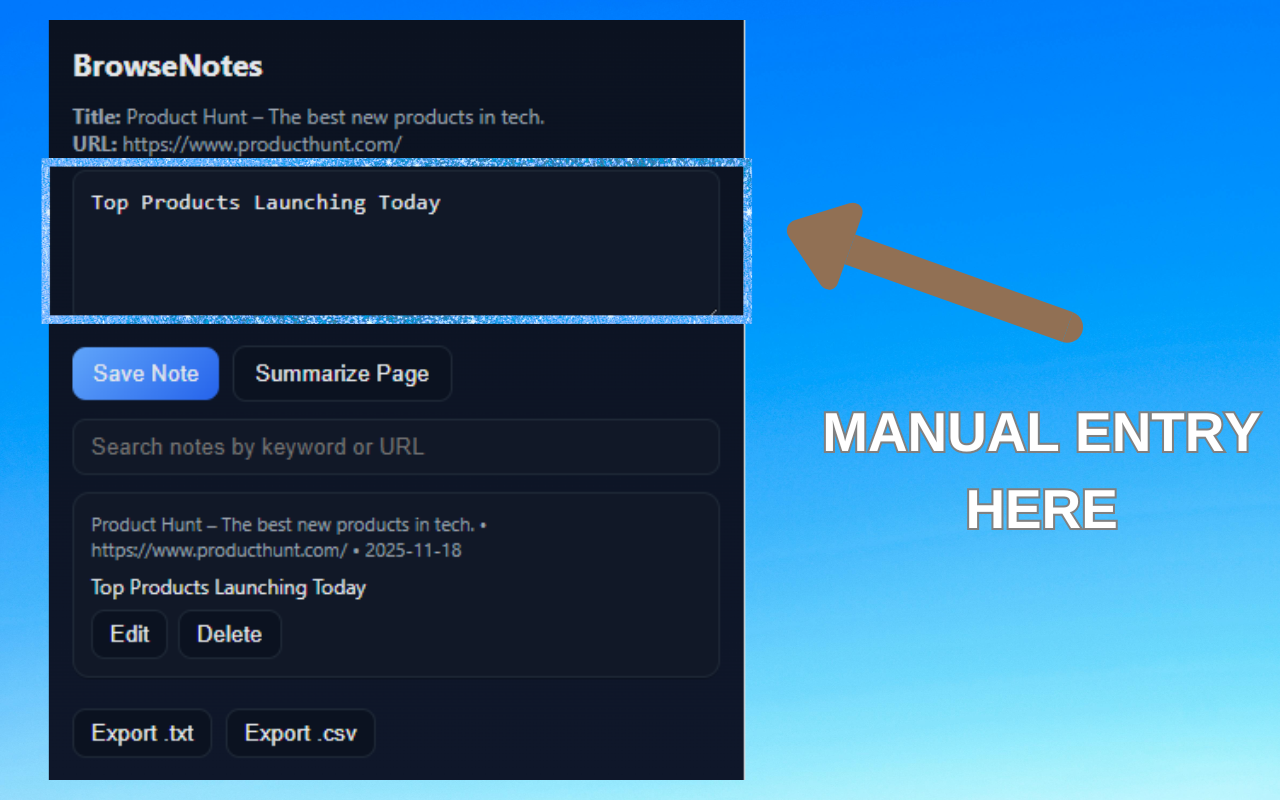
Manual note entry interface
  • Text Selection: Highlight text on any webpage, then right-click and select "Save to BrowseNotes" from the context menu.
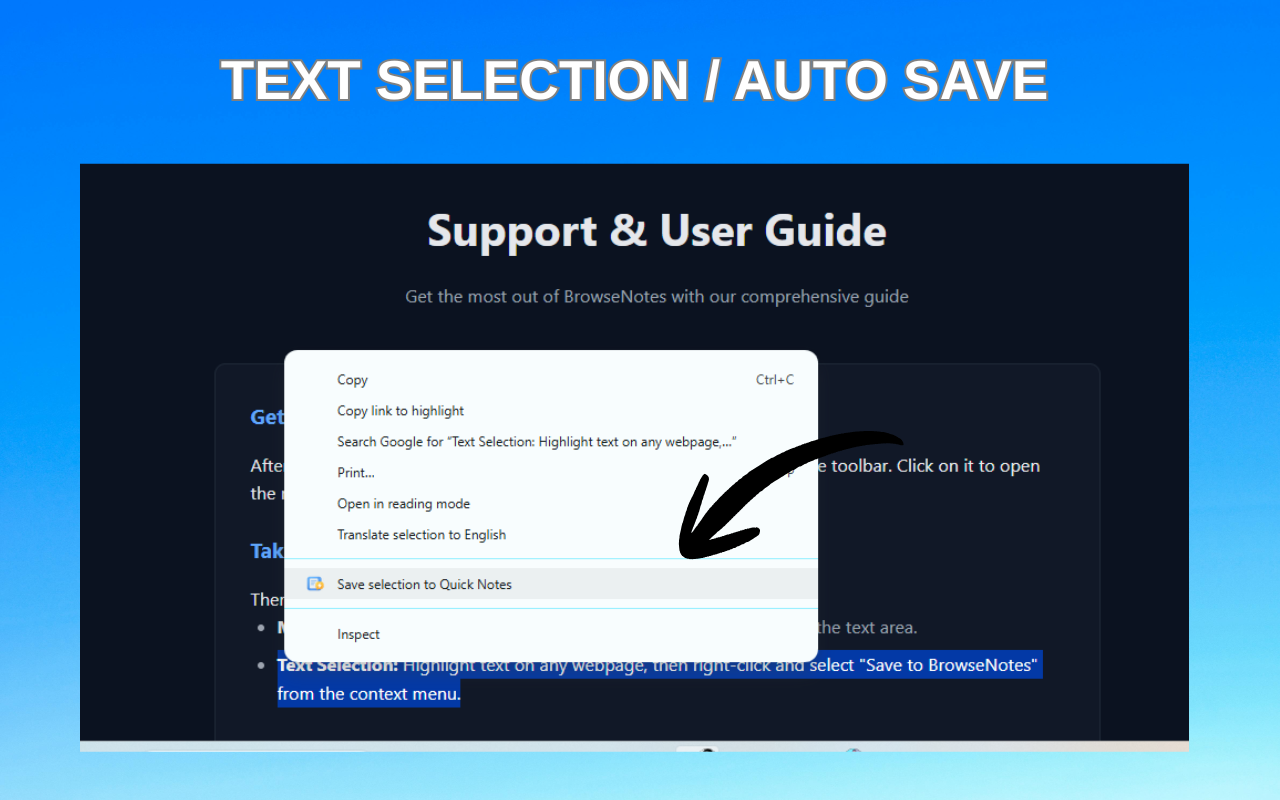
Text selection and context menu

Managing Your Notes

All your notes are displayed in the extension's main panel. You can:

  • Search: Use the search bar to find notes by keyword or URL
  • Edit: Click on any note to modify its content
  • Delete: Remove notes you no longer need
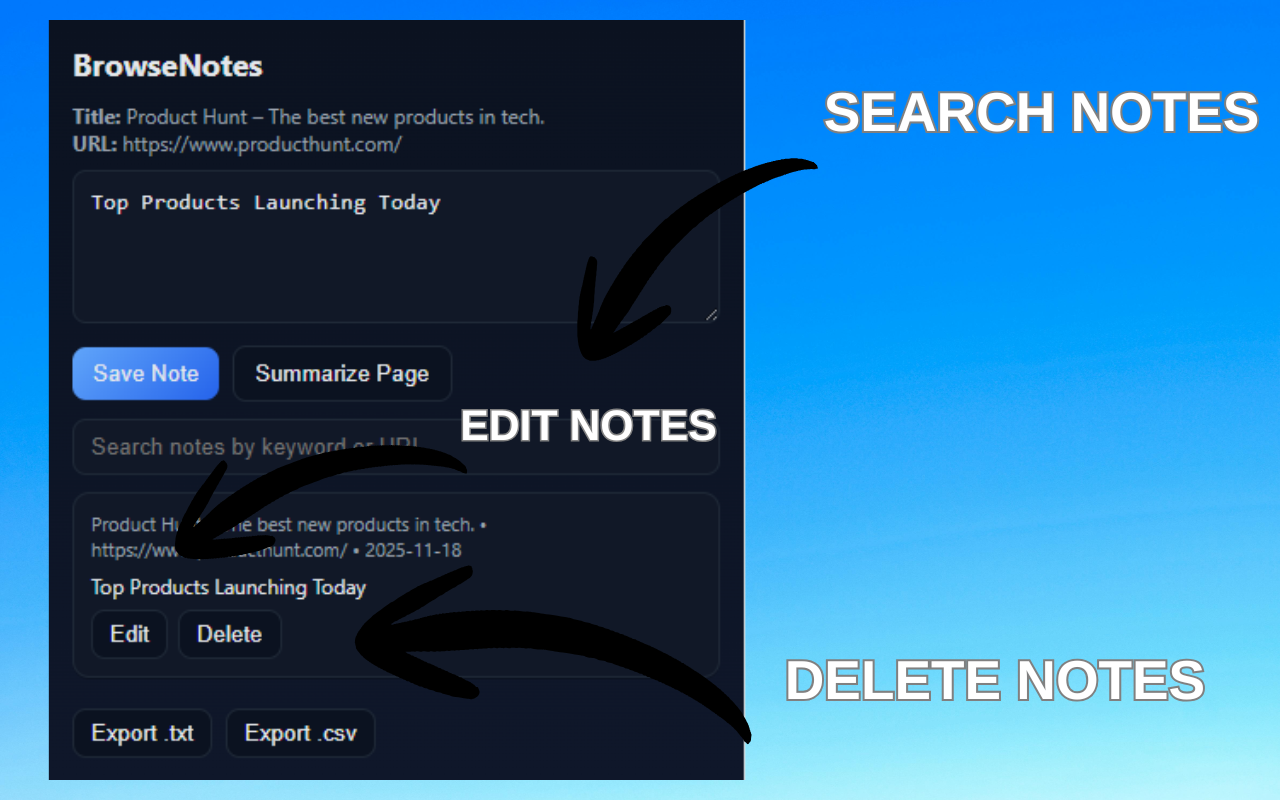
Note management interface

Exporting Notes

To export your notes:

  1. Open the BrowseNotes extension
  2. Click on the "Export" button
  3. Choose between TXT or CSV format
  4. Save the file to your desired location
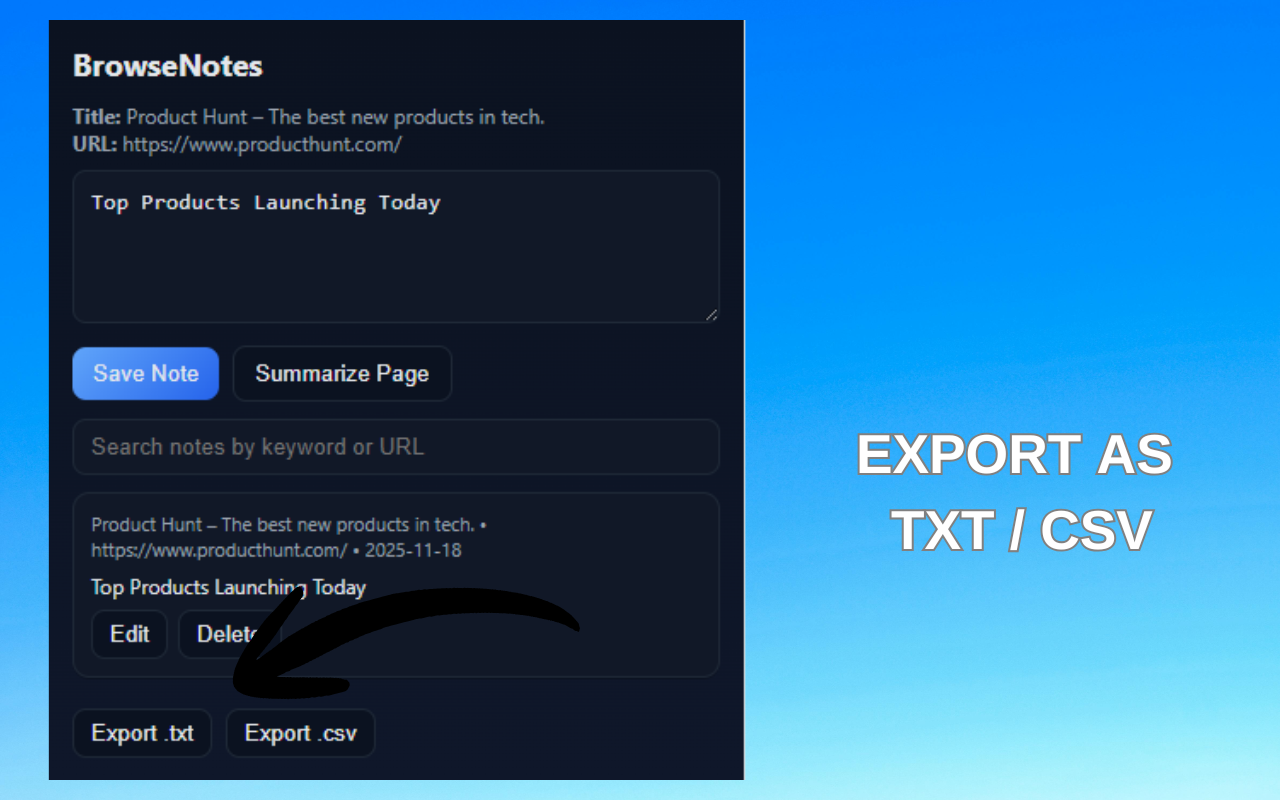
Export options interface

Generating Summaries

To create a summary of the current webpage:

  1. Navigate to the page you want to summarize
  2. Open the BrowseNotes extension
  3. Click the "Summarize" button
  4. The summary will be generated and saved as a new note
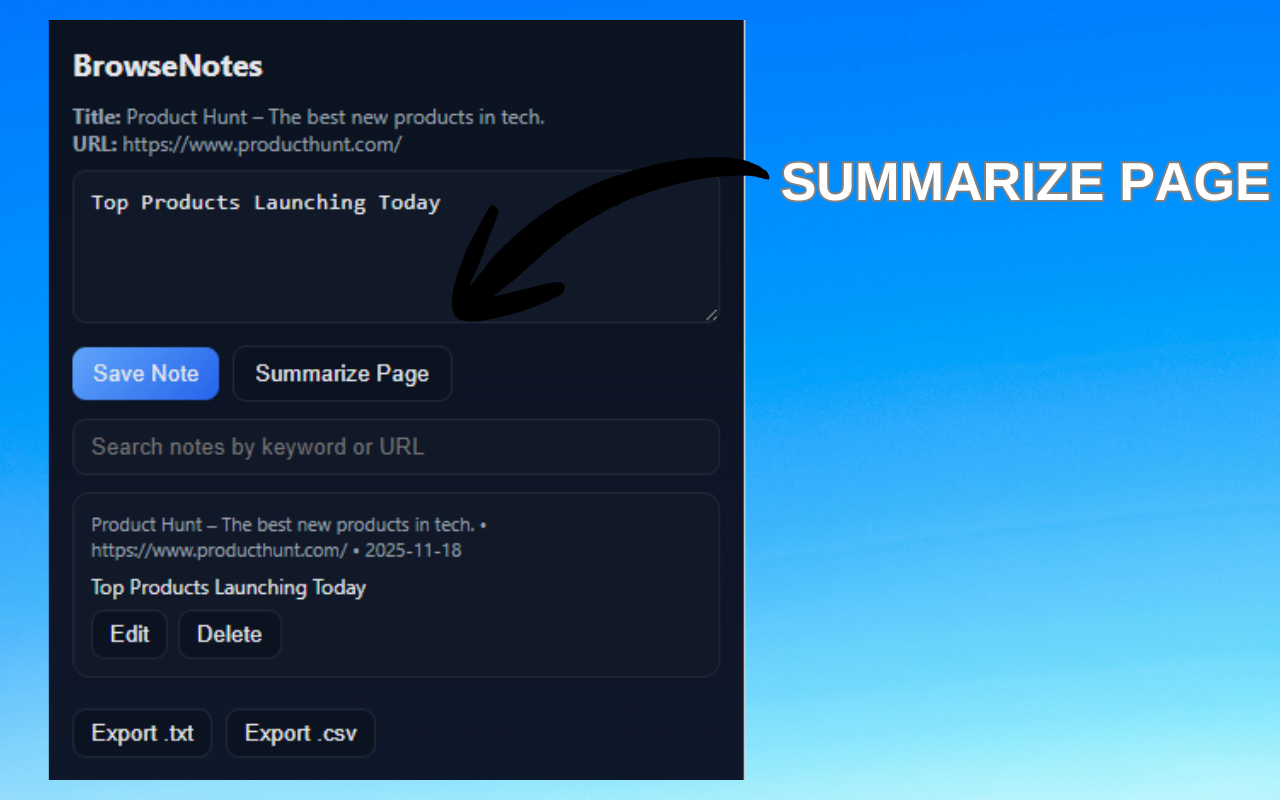
Summary generation interface

Frequently Asked Questions

Find answers to common questions about BrowseNotes

Is BrowseNotes free to use?

Yes, BrowseNotes is completely free with no hidden costs or premium tiers. All features are available to all users.

Where are my notes stored?

All notes are stored locally in your browser's storage. This ensures your data remains private and accessible even when offline.

Can I sync my notes across devices?

Currently, BrowseNotes stores notes locally on each device. You can export your notes and import them on another device, or we recommend using the export feature to back up important notes.

How do I update the extension?

Chrome automatically updates extensions in the background. You can also manually check for updates by going to chrome://extensions and enabling "Developer mode", then clicking "Update".

Is my data shared with third parties?

No, BrowseNotes does not collect, share, or sell your data. All your notes remain on your device unless you choose to export them.